
How to Make Money on Facebook?

Süper Fırsatlar sizin elinizde!
That sinking feeling in your stomach. You know the one. Your thumb slipped, or you thought you were clearing out clutter, and suddenly, poof. A vital piece of information, a cherished photo, or an entire sentimental conversation history is gone.
If you are frantically searching for how to recover deleted messages on WhatsApp, take a deep breath. You are not the first person to do this, and you certainly won't be the last. The good news is that in many cases, those messages aren't gone forever. There are ways to claw them back from the digital abyss.
However, we need to be realistic right off the bat. WhatsApp is designed with privacy in mind, meaning they don't store your chat history on their servers. Recovery depends entirely on the backups you have set up on your device.
If you act quickly and have the right settings enabled, we can likely get those chats back. Here is your practical, step-by-step guide on exactly how to recover deleted messages on WhatsApp, regardless of whether you are on an iPhone or an Android.
Before you uninstall anything or start digging into file folders, you need to know if you even have something to recover. The entire recovery process hinges on restoring from a previous backup.
If you deleted a message five minutes ago, but your last backup was at 3:00 AM this morning, you are in luck. If you have never backed up your WhatsApp, recovery becomes significantly harder, bordering on impossible for the average user.
Here is how to verify your backup situation right now:
Open WhatsApp.
Go to Settings (tap the three dots on Android; tap the gear icon on iOS).
Navigate to Chats > Chat Backup.
Look at the "Last Backup" time and date. Is it before you deleted the messages? If yes, proceed to Method 1 immediately.
This is the official, most reliable method for figuring out how to recover deleted messages on WhatsApp. It works by forcing WhatsApp to read from the cloud backup stored on either iCloud (for iPhone) or Google Drive (for Android).
The process is nerve-wracking because it involves deleting the app entirely, but trust the process if your backup check confirmed a recent save file exists.
If you are in the Apple ecosystem, your lifeline is iCloud.
Verify iCloud Drive is On: Ensure you are signed into your Apple ID and that iCloud Drive is turned on in your iPhone settings.
Uninstall WhatsApp: Press and hold the WhatsApp icon on your home screen, tap "Remove App," and then "Delete App." Don't worry; this won't delete your cloud backup.
Reinstall: Head to the App Store, download WhatsApp, and install it fresh.
Verify Your Number: Open the app and go through the setup process using the exact same phone number you used previously.
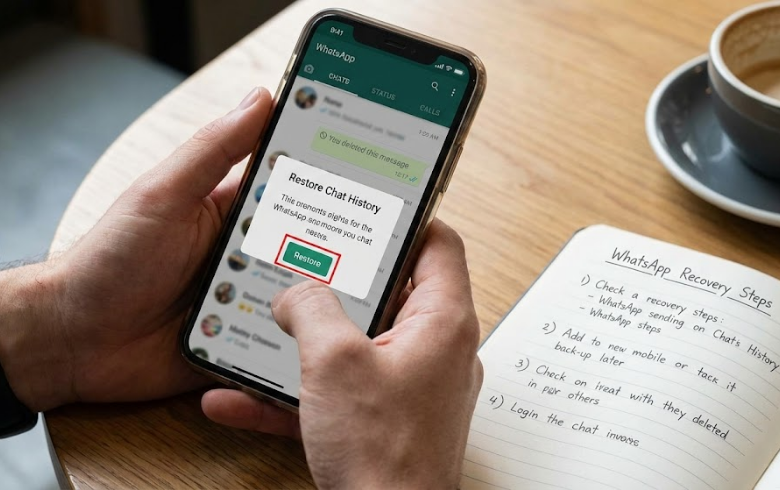
Restore Prompt: After verifying your number, WhatsApp will detect the iCloud backup. You will see a screen prompting you to "Restore Chat History." Tap it.
Wait: Depending on the size of your history, this could take a few minutes to an hour. Once complete, your old chats—including the deleted ones present in that backup—will reappear.
For Android users, Google Drive is your safety net. The steps are nearly identical to iOS.
Uninstall WhatsApp: Long-press the app icon and drag it to "Uninstall."
Reinstall: Go to the Google Play Store and install WhatsApp again.
Verify and Restore: Open the app and verify your phone number. WhatsApp will automatically search Google Drive for a backup associated with that number and Google Account.
Hit restore: When prompted to "Restore backup," tap Restore. Do not tap "Skip," or you might lose the chance to recover that specific file easily.
A Critical Warning on Timing: This method wipes out any messages sent or received between the time of your last backup and the moment you restore. If your last backup was yesterday morning, any chats from yesterday afternoon until now will be lost to recover the older, deleted messages. It’s a trade-off you have to weigh up.
Android users have a secondary fallback option that iPhone users don't. WhatsApp on Android automatically creates local backups every night around 2 AM and stores them on your phone's internal memory for about a week.
If the Google Drive method failed, or if you need to recover a message deleted a few days ago before the most recent nightly backup overwrote it, this is how you do it.
Note: This requires using a File Manager app on your phone. Most Androids come with one pre-installed, usually called "Files" or "My Files."
Open your File Manager.
Navigate to either:
Internal Storage/Android/media/com.whatsapp/WhatsApp/Databases
OR just Internal Storage/WhatsApp/Databases (depending on your phone model).
Identify the Files: You will see a list of files. The most recent backup is usually named something like msgstore.db.crypt14 (the number at the end may vary). You will also see older ones with dates in the name, like msgstore-YYYY-MM-DD.1.db.crypt14.
Rename the Current Backup: Find the most recent file (the one without a date) and rename it to something like msgstore.db.crypt14.OLD. This is just to keep it safe.
Select Your Target Backup: Find the older, dated file that contains the messages you want to recover.
Rename the Target: Rename that dated file to msgstore.db.crypt14. You are essentially tricking WhatsApp into thinking this older file is the most current one.
Uninstall and Reinstall: Just like Method 1, delete WhatsApp and reinstall it.
Restore: During setup, when it asks to restore, it will now pull from the local file you just renamed.
If you have gone through these steps and still haven't found what you're looking for, it's time for some tough love.
If you never set up backups, or if too much time has passed and new backups have overwritten the old data, those messages are likely gone for good.
When you search for "how to recover deleted messages on WhatsApp," you will see dozens of ads for expensive desktop software claiming they can scan your phone and magically retrieve deleted data.
Be extremely cautious. Many of these tools are expensive, rarely work as advertised for encrypted WhatsApp data, and often require rooting or jailbreaking your phone, which opens security risks. Stick to official backup methods whenever possible.
The panic of losing messages is a hard lesson in digital hygiene. The single best thing you can do right now is ensure this doesn't happen again.
Go back into Settings > Chats > Chat Backup. Don't just leave it on "Monthly." Set Auto Backup to "Daily" and ensure "Include Videos" is toggled on if those are important to you. A few megabytes of drive space is a small price to pay for peace of mind.
Our most popular services on social media

Enter your order code!

If you experience delivery issues with your guaranteed orders, you can quickly request a replacement.


A single post can touch thousands of hearts.
Log in to your account now and start enjoying the benefits.
Not a member? Sign Up