How to Make Money on Facebook?

 Fatih
Fatih
Most people use Google Calendar as a basic digital planner—a place to jot down a dentist appointment or a birthday. But if you treat it like a static paper diary, you are missing out on its true potential as a productivity engine. In 2026, with the integration of smarter automation and more intuitive interfaces, mastering this tool is about more than just remembering dates; it is about building a system that guards your focus.
If you want to move beyond the basics, you need to stop reacting to your schedule and start designing it. Learning how to use Google Calendar like a pro involves a mix of keyboard mastery, hidden settings, and strategic organization that turns a cluttered grid into a clear roadmap.
The difference between a beginner and a pro is often speed. If you are clicking through menus to change views or create events, you are losing valuable seconds dozens of times a day.
To truly use Google Calendar like a pro, you must keep your hands on the keyboard. First, ensure shortcuts are enabled by hitting Shift + ? on your calendar and toggling them on.
Change Views: Press D for Day, W for Week, M for Month, and A for your Agenda (Schedule).
Navigation: Press T to jump back to "Today" instantly. Use P (Previous) and N (Next) to flip through time periods.
Creation: Simply hit C to create a new event or Q for a "Quick Add" box.
Many users don't realize that you can manipulate time visually. Need to move a meeting from Tuesday to Wednesday? Don't open the event and change the date manually. Just click and drag the block. Need to extend a session? Hover over the bottom edge of an event and pull it down to stretch the time slot.
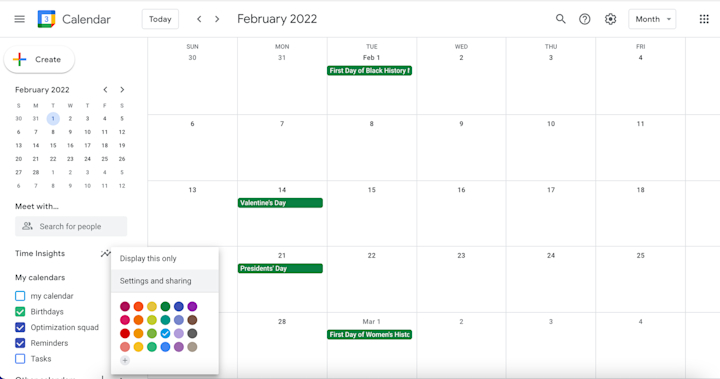
A "Pro" calendar is a visual one. If everything is the same shade of blue, your brain has to work harder to identify what’s important.
Assign specific colors to different types of tasks. For instance, make all "Client Meetings" deep red, "Deep Work/Focus Time" emerald green, and "Personal Errands" a soft lavender. This allows you to glance at your week and instantly feel the "flavor" of your workload.
Instead of putting everything on one calendar, create secondary calendars for specific life areas. Go to Settings > Add calendar > Create new calendar.
The Benefit: You can toggle these on and off. If you are at work and feeling overwhelmed, you can uncheck your "Home Projects" calendar to clear the visual clutter.
| Calendar Type | Usage | Visibility Tip |
| Main/Primary | Hard deadlines and meetings | Always On |
| Focus Blocks | Deep work sessions | Toggle off during meetings |
| Editorial/Social | Content deadlines | Share with your team only |
| Personal | Gym, dinner, hobbies | Toggle off during 9-to-5 |
If you work across borders or with a busy team, these two features are non-negotiable for professional-level scheduling.
As of 2026, remote work is the standard. If you are in New York but your main developer is in London, stop doing mental math. Go to Settings > General > Time zone and check "Display secondary time zone." This places a second clock right next to your primary one on the calendar grid, preventing you from accidentally booking a 3:00 AM meeting for your teammate.
Stop the "Does Tuesday at 2 work for you?" email chain. When creating an event and adding guests, click the Find a Time tab. Google will overlay your guests' calendars (if shared) so you can see the gaps. Alternatively, use the "Suggested times" list to see a dropdown of every slot where everyone is free.
Beyond just logging events, a pro uses the calendar to automate their mental load.
Under Settings > General > Working hours & location, you can define exactly when you are available for meetings. If someone tries to book you at 6:00 PM, Google will automatically notify them that you are outside of your working hours. In 2026, you can also specify where you are working (Office vs. Home), which helps colleagues know if they should book a physical room or a virtual link.
If you are a freelancer or a manager, use Appointment Slots. This generates a private link you can send to people. They see a version of your calendar with available blocks and can book themselves without you lifting a finger. It essentially replaces third-party booking tools like Calendly.
Never show up to a meeting searching for the agenda or the brief. When creating an event, click the paperclip icon to attach Google Drive files directly to the calendar invite. Everyone invited will have the documents ready the moment the meeting starts.
Pro Tip: Use the "Daily Agenda" email feature. Go to Settings > [Your Calendar] > Other notifications and set "Daily agenda" to Email. Every morning at 5:00 AM, you’ll get a neat list of your day’s tasks in your inbox.
The biggest mistake people make when trying to use Google Calendar like a pro is over-complicating it and then abandoning it. Your calendar should be a reflection of reality, not a wish list. If a task didn't get done today, move it to tomorrow. If a meeting ended early, shrink the block.
By treating your calendar as a living, breathing map of your energy, you stop being a slave to your notifications and start being the architect of your day. Start by implementing just two of these tips—perhaps the keyboard shortcuts and the secondary time zone—and watch how much friction disappears from your daily workflow.
Our most popular services on social media

Special 5% discount awaits new members!
BoostGrams was founded in 2015 with the rise of social media.
Special 5% discount awaits new members!
BoostGrams was founded in 2015 with the rise of social media.
Special 5% discount awaits new members!
BoostGrams was founded in 2015 with the rise of social media.

Enter your order code!

If you experience delivery issues with your guaranteed orders, you can quickly request a replacement.


A single post can touch thousands of hearts.
Log in to your account now and start enjoying the benefits.
Not a member? Sign Up