How to Make Money on Facebook?

Süper Fırsatlar sizin elinizde!
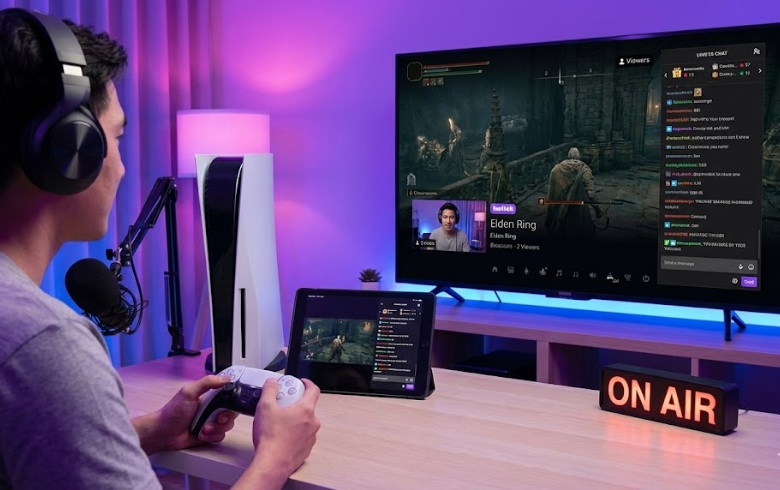
So, you have finally decided to take the plunge. You’ve been watching your favorite streamers for years, laughing at their fails, cheering their victories, and thinking, "I could totally do that." You have the charisma, you have the gaming skills (mostly), and most importantly, you have a PlayStation 5.
The good news is that the barrier to entry for game streaming has never been lower. You used to need a powerful PC, expensive capture cards, complicated audio mixers, and a degree in engineering just to get a pixelated image online. Those days are gone. Sony realized that sharing gameplay is fundamental to modern gaming, so they baked incredible streaming tools right into the console's operating system.
If you are intimidated by the technical side of things, don't be. Learning how to stream on Twitch from your PS5 is shockingly straightforward. It is designed to get you from "just playing" to "broadcasting to the world" in under five minutes. This guide will walk you through the entire process, from the initial setup to hitting that "Go Live" button for the very first time. Let's turn that console into a broadcasting station.
Before we get into the "how," let's talk about the "why." Why use the built-in tools instead of buying a PC setup?
Simplicity is the biggest factor. When you stream directly from the PS5, the console handles everything. It runs the game, encodes the video, manages your microphone audio, and sends the signal to Twitch all simultaneously. You don't need to worry about OBS settings, bitrate confusion, or driver conflicts. It just works.
It is also the most cost-effective way to start. If you already own the console and a basic headset, your startup cost is zero. It allows you to test the waters and see if you actually enjoy streaming before investing hundreds of dollars in dedicated equipment.
While the PS5 does most of the heavy lifting, you need a few basics in place before you begin learning exactly how to stream on Twitch from your PS5.
Here is your essential checklist:
A PlayStation 5 Console: Digital or Disc edition, it doesn't matter.
A Twitch Account: You need to sign up on a computer or your phone first. Make sure you have verified your email and set up two-factor authentication (2FA), as Twitch requires this to broadcast.
A Reliable Internet Connection: This is crucial. While Wi-Fi can work, a wired Ethernet connection to your router is vastly superior for streaming. Streaming requires a stable upload speed. Aim for at least a 5-10 Mbps upload speed for a smooth 1080p stream.
A Microphone: You can use the built-in microphone on the DualSense controller, but I strongly advise against it. It picks up every button mash and joystick click. Any basic USB headset or headset with a 3.5mm jack plugged into the controller will sound infinitely better.
Okay, you have your gear ready and your Twitch account secured. Let’s connect the pipes. The setup process only needs to happen once; after that, going live is just a two-button process.
First, we need to introduce your PS5 to your Twitch channel so it knows where to send the video feed.
From your PS5 home screen, navigate up to the Settings gear icon in the top right.
Scroll down to Users and Accounts.
On the left-hand menu, select Linked Services.
You will see a list of services; find and select Twitch.
The easiest way to connect is via the QR code displayed on the screen. Scan it with your phone’s camera while logged into the Twitch app on your phone. Alternatively, you can use the browser code provided.
Once authorized, your accounts are linked. You are practically halfway there.
Now, launch the game you want to play. You cannot start a stream from the system's home dashboard; a game must be running.
On your DualSense controller, locate the Create button. It's the small oval button to the left of the trackpad (it has three little lines radiating above it). Press it once to bring up the creative menu along the bottom of the screen.
You will see options for taking screenshots or saving recent gameplay video. Over on the right side, you will see a circular icon resembling a radio tower with waves emanating from it. That is the Broadcast icon. Select it.
Since you already linked Twitch, the Twitch logo should appear. Select it, and you will be presented with the final pre-stream menu. This is the command center for how to stream on Twitch from your PS5.
Before you impulsively hit "Go Live," take a moment to configure these settings:
Stream Title: This is vital. Don't just leave it as "Playing [Game Name]." Give it a catchy title that explains what you are doing (e.g., "First time playing Elden Ring - Prepare for death" or "Ranked grind to Diamond").
Video Quality: Tap the three dots (...) icon to access Broadcast Options. Here you can set your video quality. The PS5 can handle 1080p at 60fps, but only choose this if your internet upload speed is fantastic (10Mbps+). If you are unsure, start with 720p at 60fps for a smooth, reliable stream. A stable 720p stream is much better than a buffering 1080p stream.
Include Voice Chat Audio: If you are playing with friends in a PlayStation Party and want the stream to hear them, you must check this box. Crucial note: Your friends also need to go into their own party voice chat settings and allow their voices to be shared.
Once your settings are dialed in, take a deep breath, select Go Live, and that’s it. You are on the air.
Knowing the basics of how to stream on Twitch from your PS5 gets you online, but a few small tweaks can make your broadcast look much more professional.
Viewers will forgive mediocre video quality, but they will instantly leave a stream with bad audio. As mentioned earlier, avoid the controller mic. Invest in a decent headset. Ensure your microphone isn't too close to your mouth (nobody wants to hear you breathing), and do a quick test recording to make sure your game volume isn't drowning out your voice.
Do you need a facecam? Not necessarily. Many successful streamers started without one. However, seeing your reaction creates a stronger connection with viewers.
If you want to add a camera, you must use the proprietary PlayStation 5 HD Camera. Standard USB webcams do not work with the PS5. Plug it into the back of the console, and in those same Broadcast Options menus mentioned earlier, you can turn the camera on, adjust its position on the screen, and even remove the background behind you using built-in software.
The PS5 has an option to display Twitch chat on the screen as an overlay while you play. I generally recommend turning this off. It shrinks your game view and can be distracting.
Instead, use a "second screen." Prop up your smartphone or a tablet next to you with your Twitch channel open so you can read chat and interact with viewers without cluttering your gameplay screen.
The technical aspect of streaming is the easy part; the hard part is having the courage to press the button. Don't worry about having zero viewers at first. Don't worry about being perfect. Mastering how to stream on Twitch from your PS5 is just the first step in a long, fun journey. The most important thing you can do is start today, talk constantly even if nobody is watching yet, and have fun sharing your game.
Our most popular services on social media

Enter your order code!
If you experience delivery issues with your guaranteed orders, you can quickly request a replacement.

A single post can touch thousands of hearts.
Log in to your account now and start enjoying the benefits.
Not a member? Sign Up